How to Restore Old Photos on iPhone (Step by Step)
Restore old photos on your iPhone in minutes: capture the print without glare, fix scratches and fading with AI, colorize, then save and share in full quality.
By Ayoub Farid · · 3 min read
Your iPhone is already a good scanner, a good editor and a good way to share photos with family. With the right app, it is also a capable photo restoration studio. This guide shows the full process using only your phone.
What you need
- An iPhone (any recent model works; better cameras give sharper captures).
- The old prints, removed from frames or sleeves if possible.
- A photo restoration app such as Refixo.
- A spot with soft daylight and a flat, dark, non-shiny surface.
Step 1: Capture the print properly
This is the step that makes the biggest difference.
- Lay the photo flat on a matte surface. A dark cloth reduces reflections.
- Use window light, but avoid direct sun. Turn off overhead lights that cause glare.
- Hold the iPhone parallel to the photo. Tilting causes keystone distortion.
- Fill the frame with the photo, leaving only a thin border.
- Tap to focus on a face, and keep the phone steady (rest your elbows on the table).
- Turn off the flash. It creates hot spots on glossy prints.
For more tips, read how to scan photos with your iPhone and photographing prints without glare.
Step 2: Crop and straighten (optional)
In the Photos app, tap Edit, then the crop tool to straighten and remove the background. Don't apply filters yet; let the restoration work on the natural capture.
Step 3: Restore with AI
In Refixo:
- Tap to choose a photo from your library, or use the in-app camera to snap the print directly.
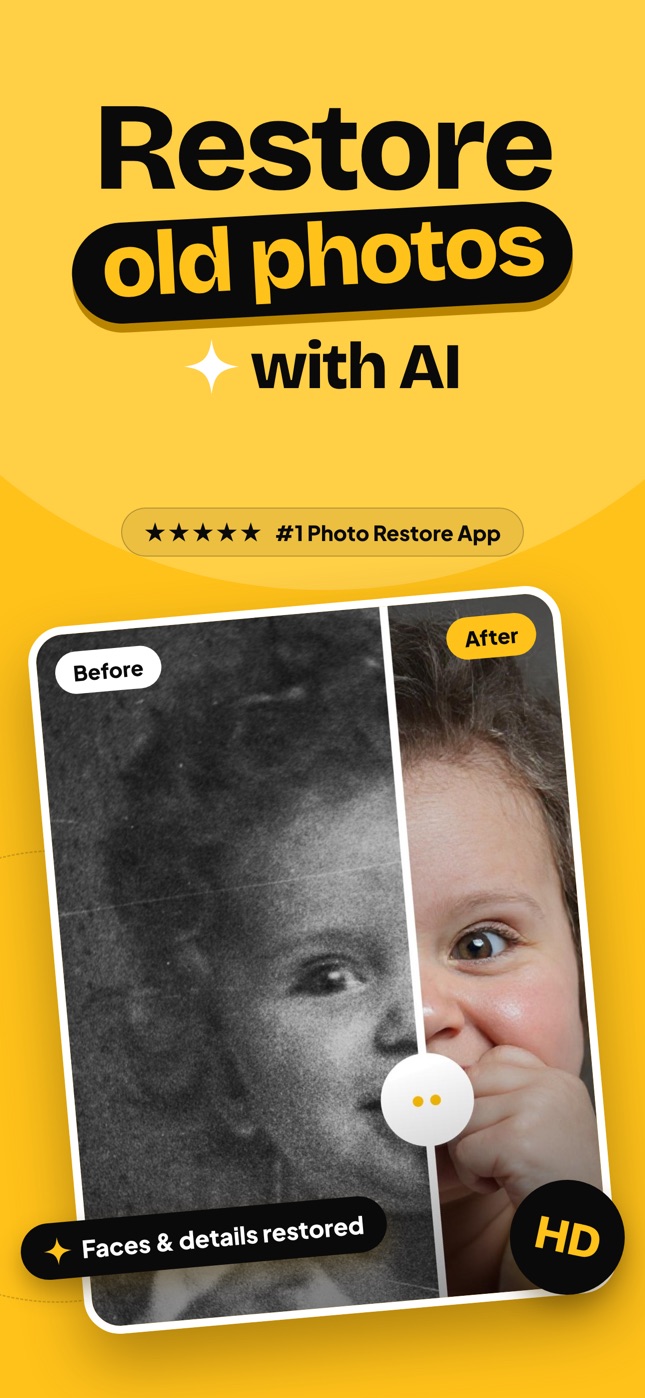
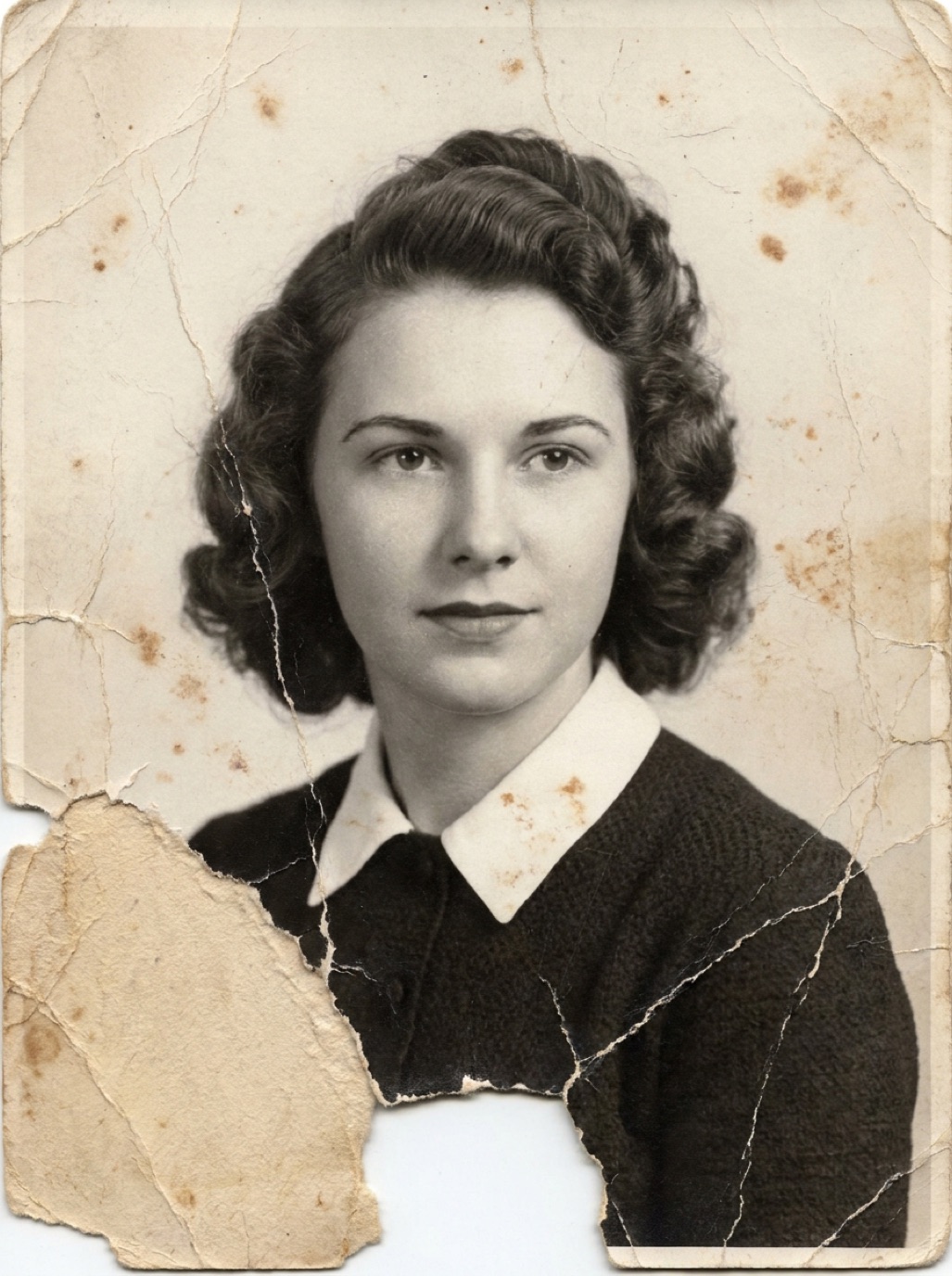
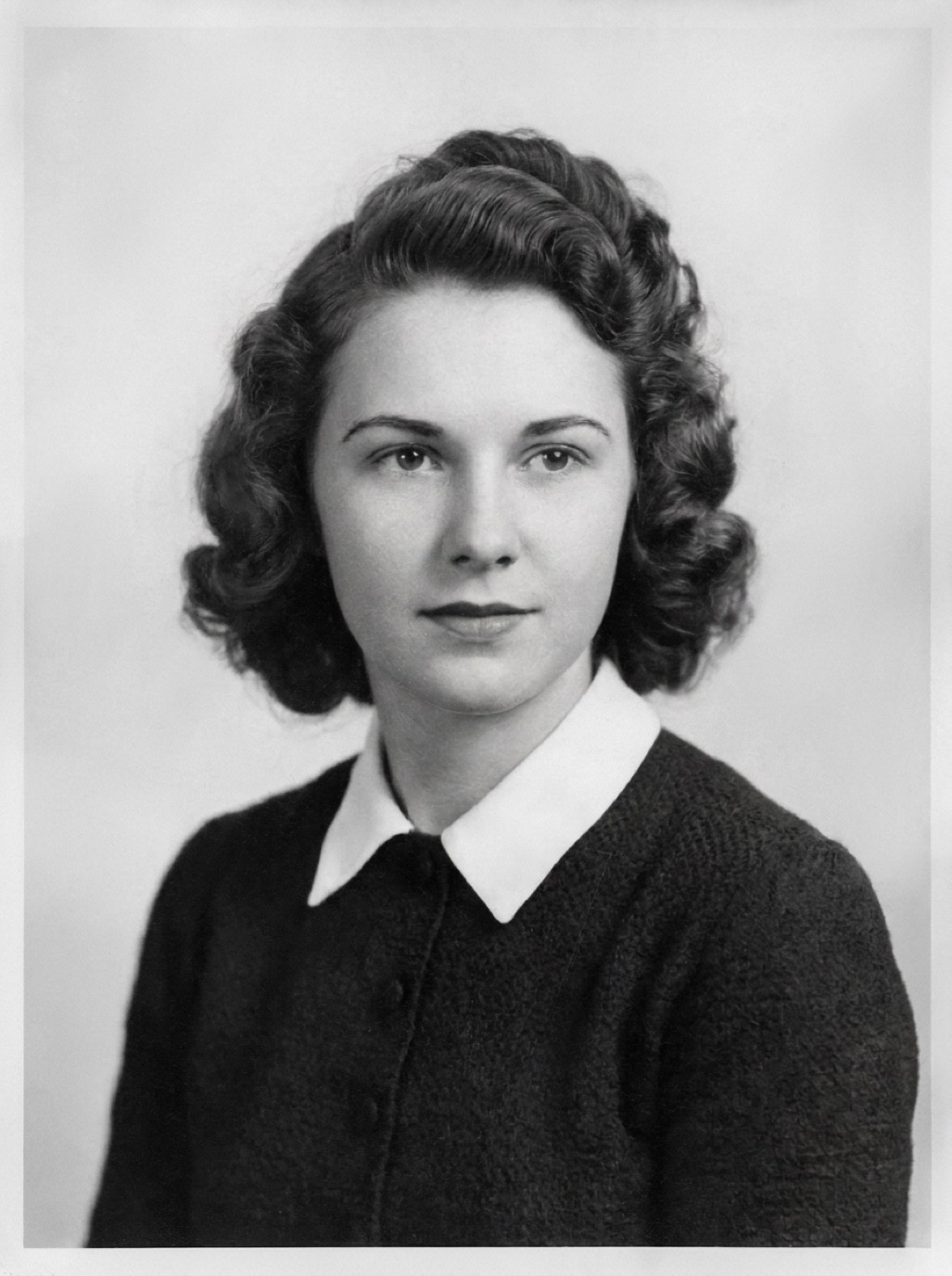
- Tap Restore. The AI removes scratches, dust and noise, repairs damage, enhances faces and corrects faded colors and contrast.
- Drag the slider to compare before and after.
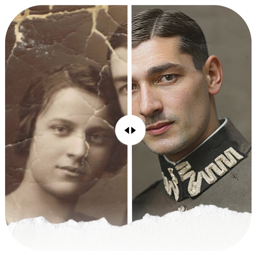
A restore takes a few seconds, and black and white photos can also come back in natural color. Learn more in colorizing photos on iPhone.
Step 4: Check the details
Zoom in with two fingers and check faces, hands and the edges of any tears. If something looks wrong, recapture the print with better light, or crop out a badly damaged border, and restore again.
Step 5: Save, share and keep the original
- Tap Save Photo to save the restored version to your library in full quality.
- Tap Share to send it straight to family through Messages, WhatsApp or email.
- Every restore is also kept in Refixo's History, so you can find it later.
- Keep the original capture too. Create an album called "Originals" so they never get mixed up.
Tips for better results on iPhone
- Use the main (1×) camera, not ultra-wide, to avoid distortion.
- Clean your lens with a soft cloth; a fingerprint smudge softens everything.
- Capture small photos closer but not so close the phone can't focus. Use 2× zoom for wallet-size prints (see restoring small wallet photos).
- Restore one photo first to check your capture setup, then do the rest of the batch.
Frequently asked questions
Can I restore old photos on iPhone without a scanner?
Yes. A careful photo of the print taken in soft daylight is enough for most family photos. A scanner helps for very small prints or large enlargements.
Is there a built-in photo restoration feature on iPhone?
The Photos app can adjust exposure and color and remove small blemishes on newer models, but it does not repair tears, heavy scratches or blurry faces, or colorize. A restoration app does that.
Does Refixo work on older iPhones?
Refixo requires iOS 15.1 or later and works on iPhone and iPad.
Will the restored photo be high resolution?
Yes. Restored photos are exported in full quality without watermarks, and the starting resolution of your capture still matters.
Restore it in seconds
Bring your old photos back to life
Refixo's AI removes scratches, tears and stains, sharpens faces and colorizes black & white photos in seconds. Free to download on iPhone and iPad, with a 3-day free trial.
Download on theApp Store