How to Scan Photos with Your iPhone (Sharp, Glare-Free Results)
Scan old photos with your iPhone like a pro: light, angle, lens choice, focus, avoiding glare and keystone distortion, and a fast setup for whole albums.
By Ayoub Farid · · 2 min read
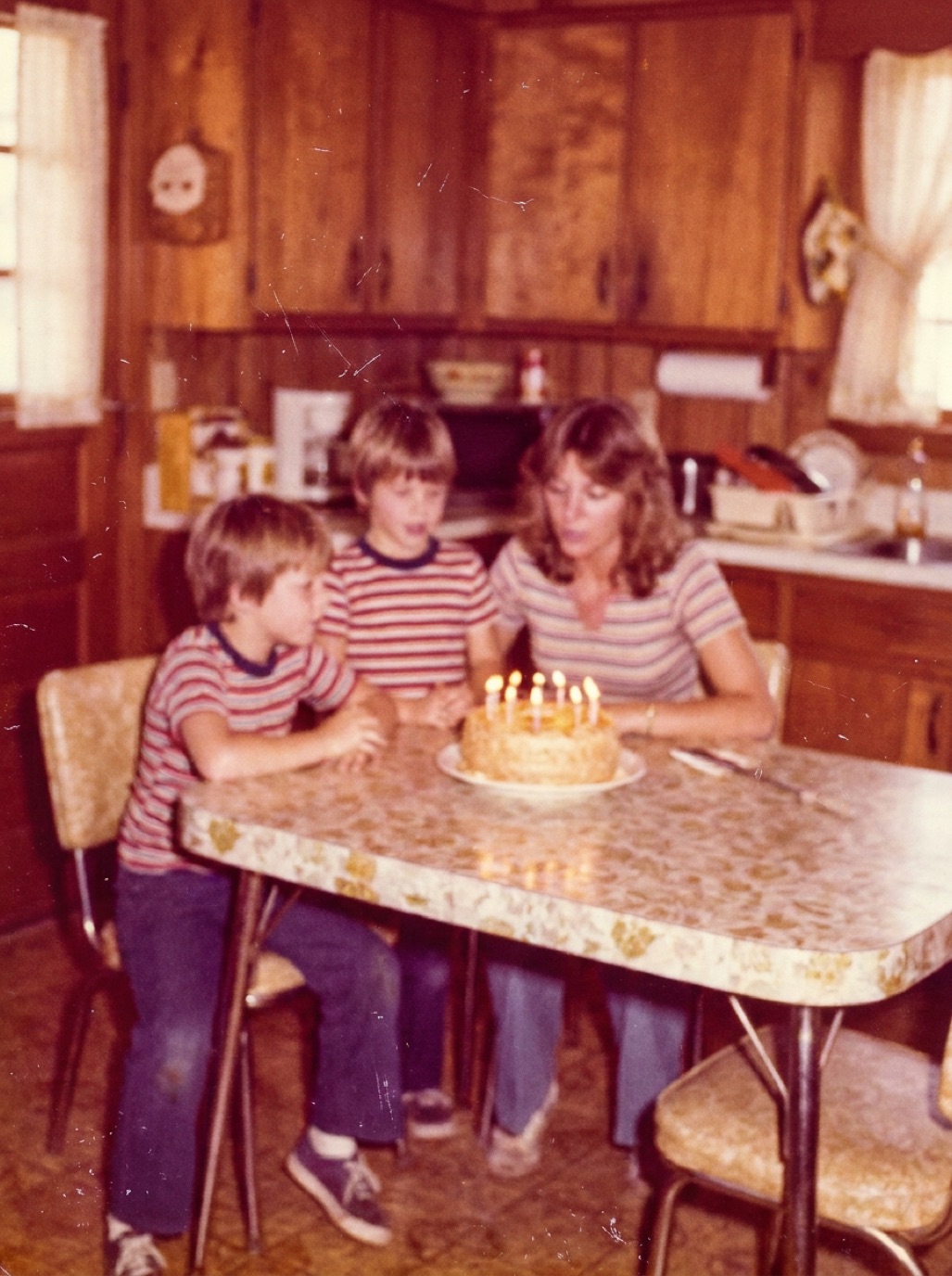

Your iPhone can scan old photos well enough for restoration, sharing and most prints. The difference between a mediocre capture and a great one isn't the phone; it's light, angle and steadiness. Here's a setup that works.
The setup
- Location: a table near a window, with soft daylight. Avoid direct sun and overhead lamps.
- Background: a dark, matte cloth or black card. It reduces reflections and makes edges easy to crop.
- Support: a phone stand, tripod with a phone mount, or a stack of books so the phone sits directly above the photo.
- Clean lens: wipe it with a soft cloth. A fingerprint smudge makes everything hazy.
Taking the shot
- Place the photo flat in the center of the cloth.
- Hold the phone parallel to the photo. If the edges look like a trapezoid, tilt until they're a rectangle. Turn on the grid in Settings > Camera to help.
- Choose the lens: use 1× for normal prints, 2× or 3× for small prints so you can stay far enough away to focus and avoid distortion.
- Fill the frame, leaving a small border.
- Tap to focus on the most important face. Hold your finger to lock focus and exposure (AE/AF Lock).
- Lower exposure slightly by sliding the sun icon down if whites look blown out.
- Flash off.
- Use the timer or volume button to avoid shaking the phone.
Glare on glossy prints
Glossy prints reflect light sources. Tips:
- Turn off ceiling lights and let light come from the side.
- Tilt the photo very slightly if a reflection stays, then straighten in editing.
- Put a black card around the phone so the phone itself isn't reflected.
More: photographing prints without glare.
Built-in tools
- Notes app document scanner: detects edges and flattens perspective, but applies document-style processing that's not ideal for photos.
- Live Text in Photos can read handwritten notes on the backs of photos.
- Restoration apps: Refixo has an in-app camera, so you can snap the print and restore it straight away.
Scanning a whole album
Set up once and work page by page:
- Mark the phone and photo positions with tape.
- Capture each photo or each page in the same light.
- Capture backs with writing.
- Create an album in Photos for each physical album.
See digitizing photo albums fast.
After capture
- Crop and straighten in Photos.
- Restore damaged photos (see restoring old photos on iPhone).
- Back up (see backing up family photos).
Frequently asked questions
Is the iPhone camera good enough to scan photos?
Yes. With good light and a steady, parallel setup, iPhone captures are excellent for family prints.
Which iPhone lens is best for scanning photos?
1× for standard prints; 2× or 3× for small prints to avoid focus issues and distortion.
Should I use HDR or Night mode?
Usually not needed in good daylight. Night mode can blur if the phone moves.
Should I use the Notes scanner for photos?
It's convenient but optimized for documents. The camera app or a photo-scanning app usually gives more natural results.
Restore it in seconds
Bring your old photos back to life
Refixo's AI removes scratches, tears and stains, sharpens faces and colorizes black & white photos in seconds. Free to download on iPhone and iPad, with a 3-day free trial.
Download on theApp Store