How to Colorize Black and White Photos on iPhone
Colorize black and white photos on your iPhone in seconds: capture the print, restore and colorize with AI, compare with the slider and share in full quality.
By Ayoub Farid · · 2 min read
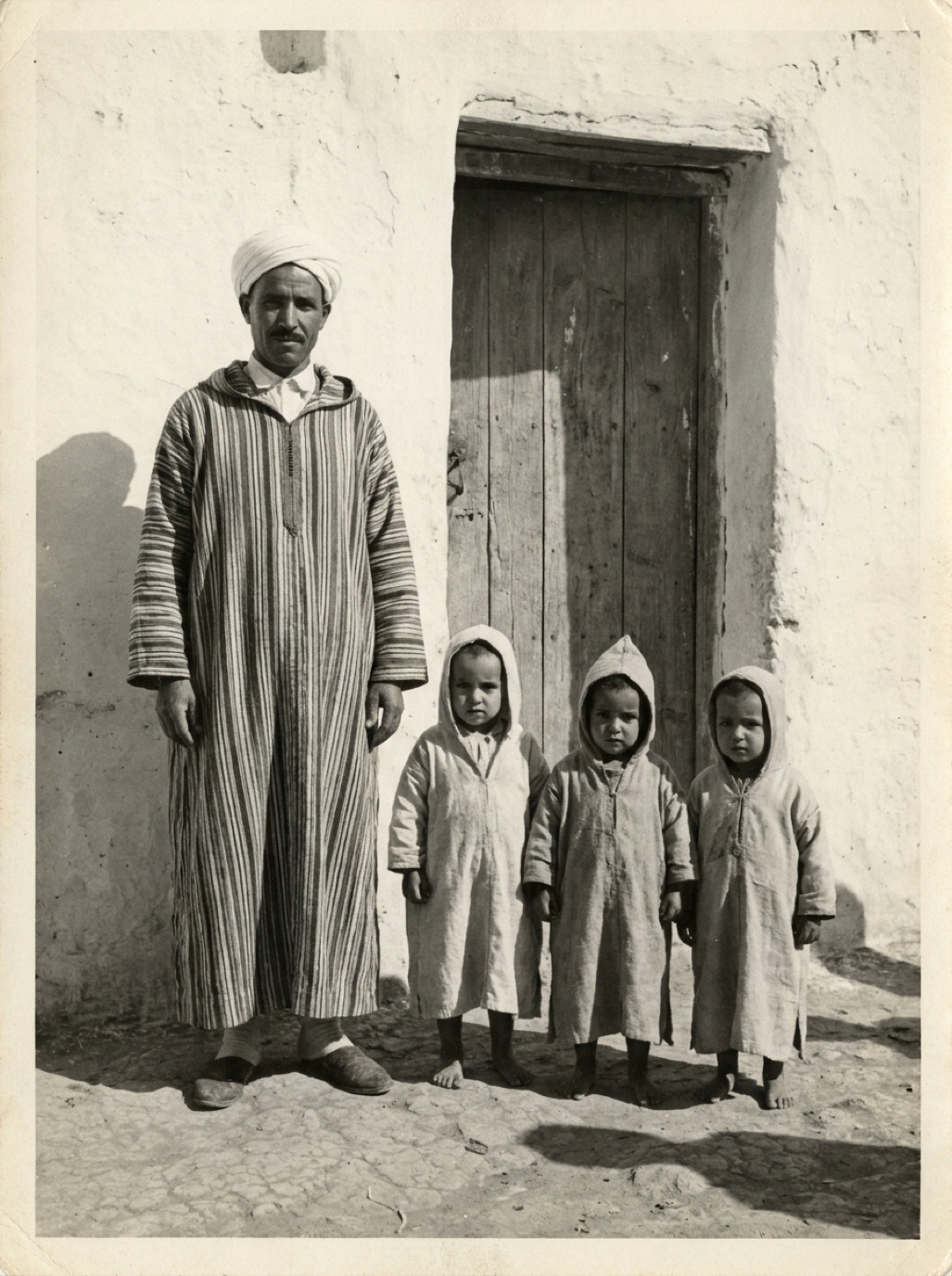

You don't need a computer or editing skills to colorize old photos. With your iPhone and a colorization app, the whole process, from print to colorized photo in the family group chat, takes a couple of minutes.
Step 1: Get the photo onto your iPhone
- Already digital? If the photo is in your library (from a scan, a relative or an old website), skip ahead.
- A print? Photograph it in soft daylight, phone parallel to the print, no flash. See how to scan photos with your iPhone.
Step 2: Colorize with an app
In Refixo:
- Choose the black and white or sepia photo from your library, or take a picture of the print with the in-app camera.
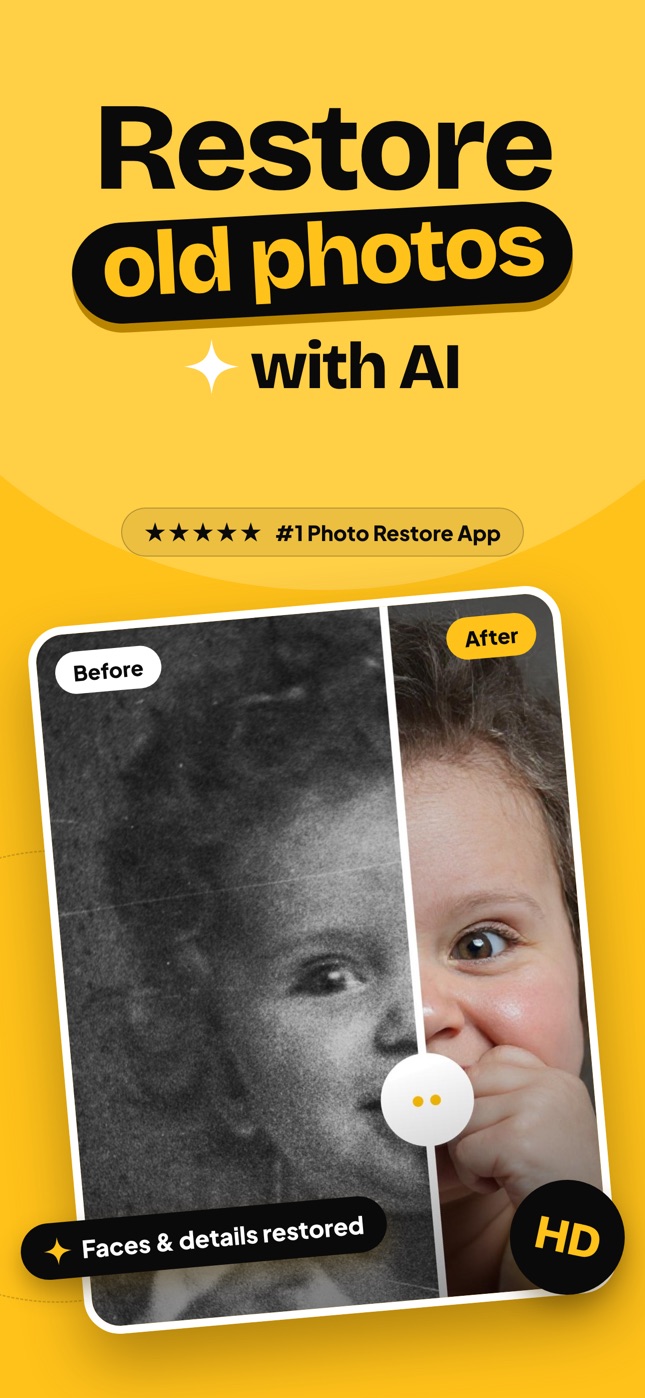
- Tap Restore. The AI removes scratches and dust, sharpens faces, restores contrast and adds natural color.
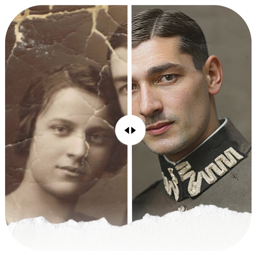
- Drag the slider between B&W and color.
It takes a few seconds.
Step 3: Check the colors
Zoom in on faces, hands and clothing:
- Skin tones should look natural.
- Colors shouldn't spill over edges.
- Known details (eye color, a famous red dress) may need a manual tweak.
See are colorized photos accurate?
Step 4: Save and share
- Tap Save Photo to save the colorized version to your library, in full quality and without a watermark.
- Tap Share to send it via Messages, WhatsApp or email.
- Every restoration stays in the app's History.
Fine-tuning in the Photos app
After saving, you can open the colorized photo in the iPhone Photos app and adjust Warmth, Saturation or Vibrance if you prefer a softer or warmer look. Keep adjustments small.
Tips
- Colorize the best copy of the photo you can find.
- For small wallet photos, capture closer or use 2× zoom (see restoring small wallet photos).
- Keep the original black and white version too.
Related: how to colorize black and white photos, best photo colorizer apps.
Colorize a batch in one sitting
If you have a whole album to colorize, set up once and work through it:
- Capture all the prints first, in the same light and position.
- Put them in a dedicated album in Photos, such as "To colorize".
- Colorize each one, check it, and save it.
- Move originals to an "Originals" album and colorized photos to a "Colorized" album.
Working in batches keeps quality consistent and makes it easy to share the whole set with family at once.
Frequently asked questions
Can the iPhone colorize photos by itself?
The Photos app can't colorize black and white photos. You need a colorization app.
Is colorizing photos on iPhone free?
Many apps offer a free trial. Refixo is free to download with a 3-day free trial.
Will the colorized photo be high quality?
Yes. Results are exported in full quality; the starting resolution of your capture matters.
Can I colorize photos on iPad too?
Yes. Refixo works on both iPhone and iPad.
Restore it in seconds
Bring your old photos back to life
Refixo's AI removes scratches, tears and stains, sharpens faces and colorizes black & white photos in seconds. Free to download on iPhone and iPad, with a 3-day free trial.
Download on theApp Store