How to Digitize Negatives and Slides with Your Phone
Digitize old film negatives and slides with your phone: a simple backlight setup, capturing sharp frames, inverting negatives, color correction and restoration.
By Ayoub Farid · · 2 min read
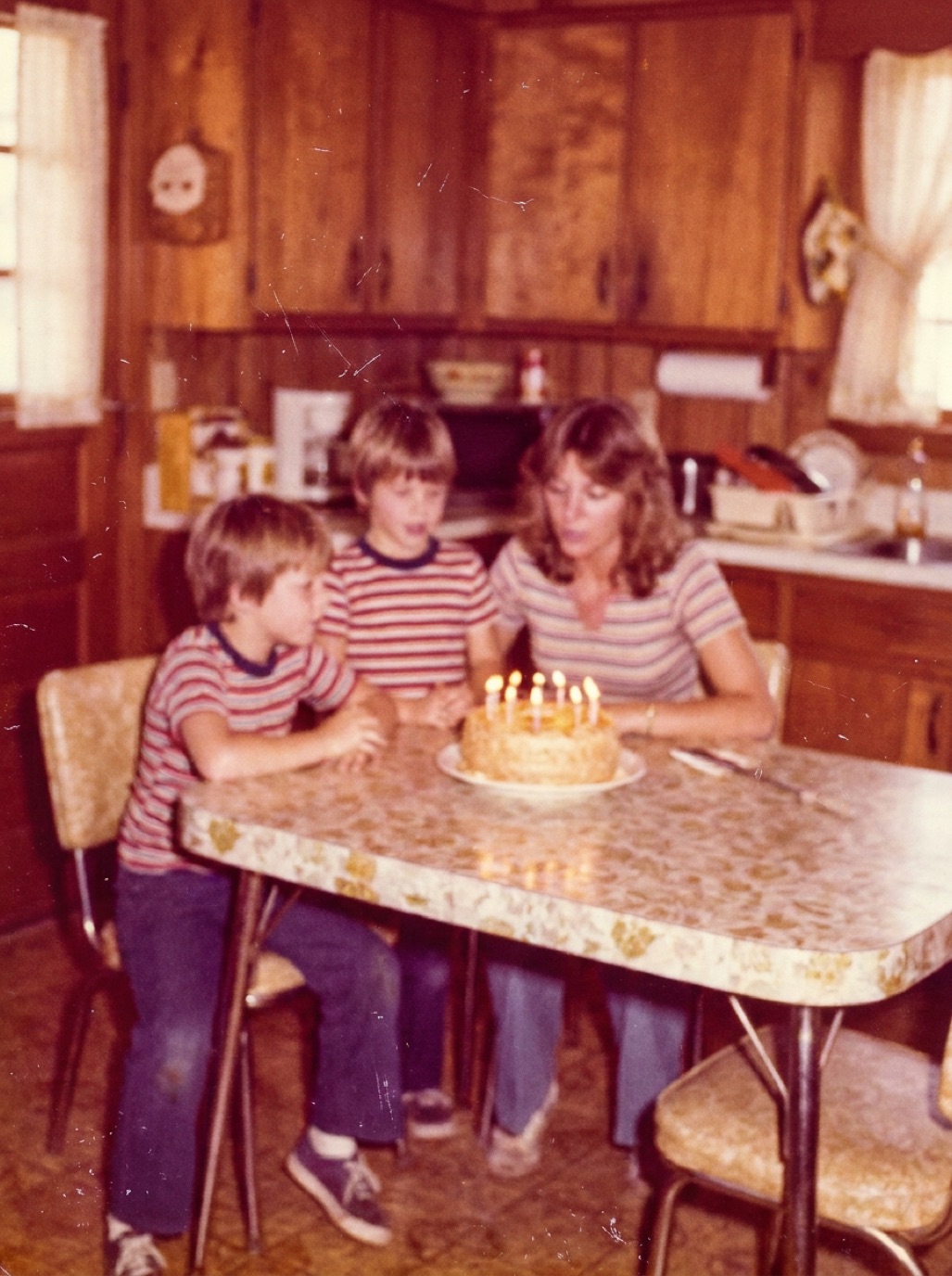
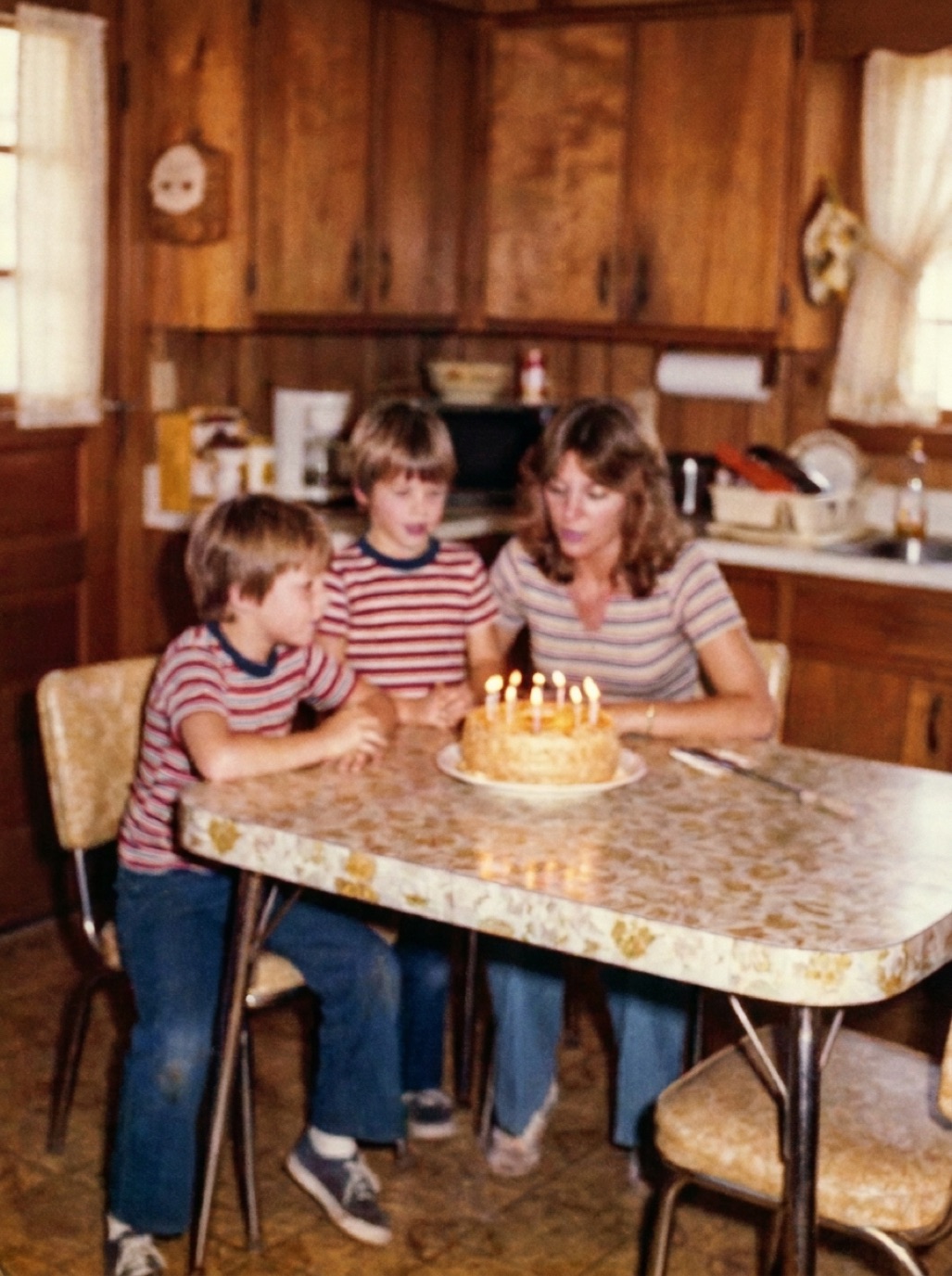
Many families have envelopes of negatives that were never printed, or boxes of slides no one has seen for decades. Negatives often contain more detail than the prints made from them. You can digitize them at home with your phone and a light source.
What you need
- A light source: a tablet or laptop screen showing a plain white image, a lightbox or an LED light panel.
- A way to hold film flat: a cardboard mask with a cutout, a piece of clean glass, or a cheap film holder.
- A phone stand to hold the phone directly above.
- Gloves (nitrile) and a blower to remove dust.
Setup
- Set the light source to maximum brightness, plain white.
- Place the negative or slide on it, shiny side up (the dull emulsion side down usually).
- Cover with a mask so only the frame is lit; extra light around it reduces contrast.
- Position the phone parallel, directly above, using 2× zoom so you can stay at a distance that focuses well.
- Turn off room lights to avoid reflections.
Capture
- Tap to focus on the image; lock focus and exposure.
- Lower exposure slightly so highlights aren't blown.
- Take two shots per frame and keep the sharpest.
- Blow dust off first; every speck is magnified (see removing dust spots from scanned photos).
Converting negatives to positives
Slides are already positive. Negatives need inverting:
- Black and white negatives: invert the image in an editor (or use a negative-scanning app), then adjust contrast.
- Color negatives: invert and remove the orange film base. Dedicated apps and editors with negative conversion do this automatically; manual conversion requires per-channel curves adjustments.
Restore the result
Phone-digitized film is often slightly soft, dusty or color-shifted. After converting to a positive, restore it with Refixo to remove dust and scratches, sharpen faces and correct colors. Black and white frames can also be colorized.
When to use a scanner or service
- Thousands of frames: a scanning service is faster (see photo scanning service vs DIY).
- Maximum quality: a film scanner at 2400–4000 dpi (see best DPI for scanning photos).
- Medium and large format negatives are easier at home because they're bigger.
Store film properly
Keep negatives in archival sleeves, in a cool, dry, dark place, separate from the prints (see how to store old photos).
Frequently asked questions
Can I scan negatives with my phone?
Yes. Backlight them with a bright white screen or lightbox, capture with the phone, then invert the image.
How do I turn a negative into a positive photo?
Invert it in an editor or a negative-scanning app. Color negatives also need the orange base removed.
Is phone scanning of negatives good enough?
For viewing and sharing, yes. For large prints, a film scanner gives more detail.
Should I keep the negatives after scanning?
Yes. Negatives are an excellent original source for future, better scans.
Restore it in seconds
Bring your old photos back to life
Refixo's AI removes scratches, tears and stains, sharpens faces and colorizes black & white photos in seconds. Free to download on iPhone and iPad, with a 3-day free trial.
Download on theApp Store