How to Enhance Low-Quality Photos with AI
Enhance low-quality photos that are small, blurry, noisy or compressed: what AI enhancement does, the best workflow, and how to avoid an over-processed look.
By Ayoub Farid · · 2 min read

"Low quality" can mean many things: a tiny photo saved from an old website, a grainy night photo, a compressed image forwarded ten times in group chats, or a soft scan. AI enhancement handles all of these, but understanding what's wrong helps you get the most from it.
What makes a photo "low quality"
- Low resolution: not enough pixels (see upscaling old photos).
- Blur: soft focus, motion or camera shake (see fixing blurry photos).
- Noise and grain: speckled texture (see fixing grainy photos).
- Compression artifacts: blocks and smearing (see fixing compressed WhatsApp photos).
- Poor color and contrast: flat, faded or tinted.
Most low-quality photos have several of these problems at once.
Find the best source first
Before enhancing, look for a better version:
- The original file from the person who took it, not a forwarded copy.
- The original print, which you can recapture sharply.
- A backup from an old computer, CD or cloud account.
A better source beats any enhancement.
Enhance with AI
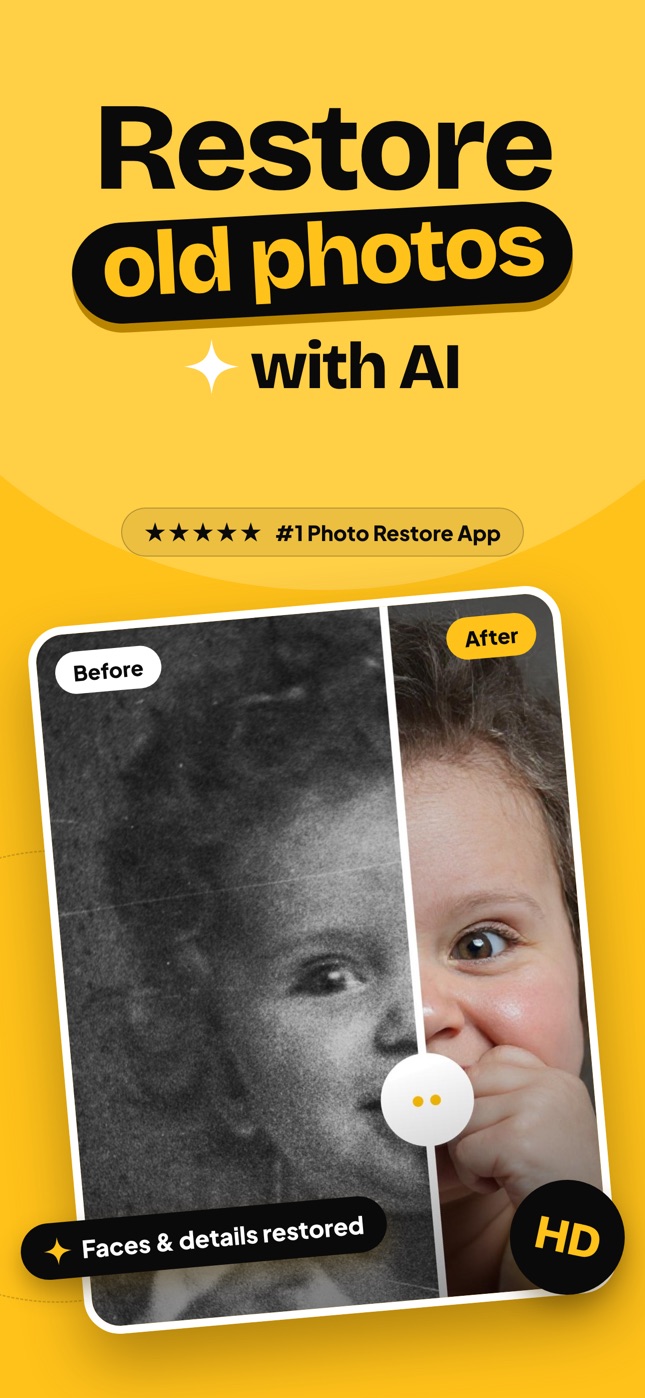
AI enhancement models were trained on pairs of low- and high-quality images. They predict what a clean, sharp version would look like: finer hair, crisp eyes, smooth gradients without blocks. In Refixo, tap Restore: the photo is sharpened, upscaled, denoised and color-corrected in one pass, with faces given special attention.
Avoid the over-processed look
Signs of too much enhancement:
- Plastic skin with no pores or texture.
- Identical "perfect" eyes.
- Halos around edges.
- Painted-looking hair and grass.
If you see these, start again from the original (don't enhance the enhanced copy), and if possible use a better source. Natural-looking results come from moderate enhancement of a decent original.
Workflow summary
- Find the best original.
- Crop to what matters.
- Enhance once with AI.
- Check faces at full size.
- Save, keeping the original.
Real-world examples
- A photo saved from an old memorial website: small, compressed and slightly blurred. Enhancement upscales it and cleans up blocks, giving a usable portrait for a frame.
- A night photo from a 2008 party: noisy and dark. Brightening plus AI noise reduction recovers faces without turning them into wax.
- A cropped face from a wedding group photo: few pixels. Enhancement rebuilds a sharp face; compare it with other photos to make sure it still looks like the person.
In each case, the same rule applies: start from the best source you can find, enhance once, and check faces.
Frequently asked questions
Can AI really improve a low-quality photo?
Yes. It can sharpen, upscale, denoise and fix colors, often dramatically. It can't recover details that were never captured.
What's the difference between enhancing and upscaling?
Upscaling increases pixel dimensions. Enhancing improves overall quality: sharpness, noise, color and detail. Many tools do both.
Why does my enhanced photo look fake?
Usually over-processing or a very poor source. Try a better original and a single enhancement pass.
Can I enhance photos on my iPhone?
Yes. Apps like Refixo enhance photos directly on iPhone and iPad.
Restore it in seconds
Bring your old photos back to life
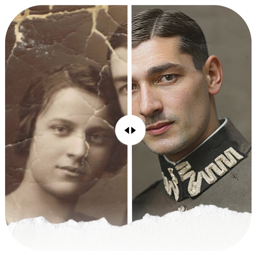
Refixo's AI removes scratches, tears and stains, sharpens faces and colorizes black & white photos in seconds. Free to download on iPhone and iPad, with a 3-day free trial.
Download on theApp Store