How to Organize Digital Family Photos (A System That Lasts)
Organize scanned and digital family photos with a simple folder structure, file names, captions and albums, so anyone in the family can find any photo.
By Ayoub Farid · · 2 min read
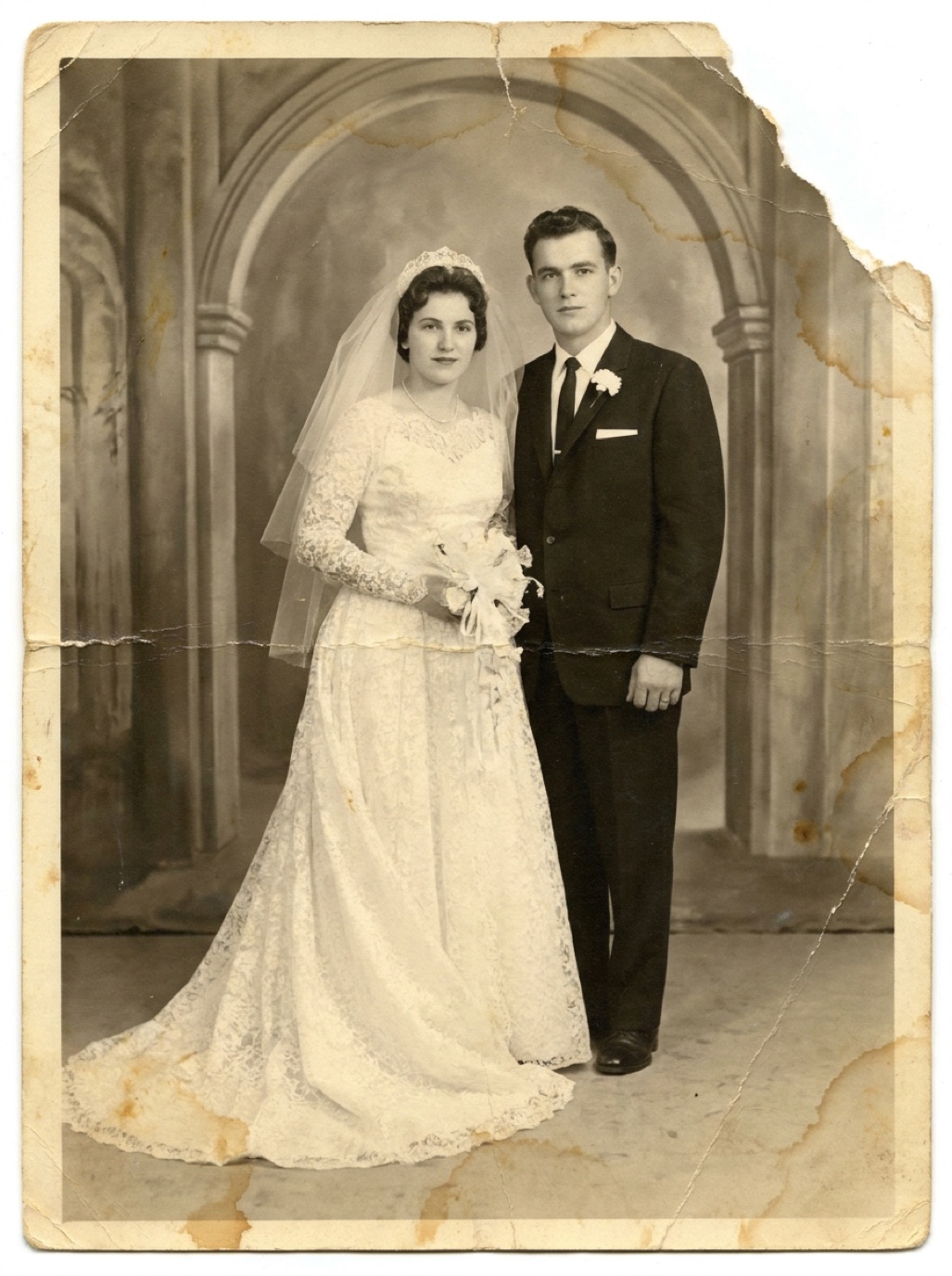
Digitizing is only half the job. A folder of 3,000 files named `IMG_4821.jpg` is nearly as hard to use as a box of unlabeled prints. A simple, consistent system makes your archive searchable today and understandable to your grandchildren.
Principles
- Simple enough to keep using. If it's complicated, you'll stop.
- Works without special software. Folders and file names last longer than any app.
- Information lives with the photo. Names, dates and places in file names and metadata, not just in your head.
Folder structure
A structure that works for most families:
``` Family Photos/ 1_Originals/ 1930s/ 1940s/ ... 2_Restored/ 1930s/ ... 3_Projects/ 2026-Christmas-book/ ```
- Keep originals and restored versions in parallel folders so they never get mixed up.
- Sort by decade, then by event or branch inside if needed.
File names
Use: `YYYY-MM-DD_place_people-or-event_seq.jpg`
- `1962-06-14_casablanca_wedding_01.jpg`
- `c1948_village_grandparents-house_02.jpg` (c = circa)
- `1975_unknown-place_birthday-karim_01.jpg`
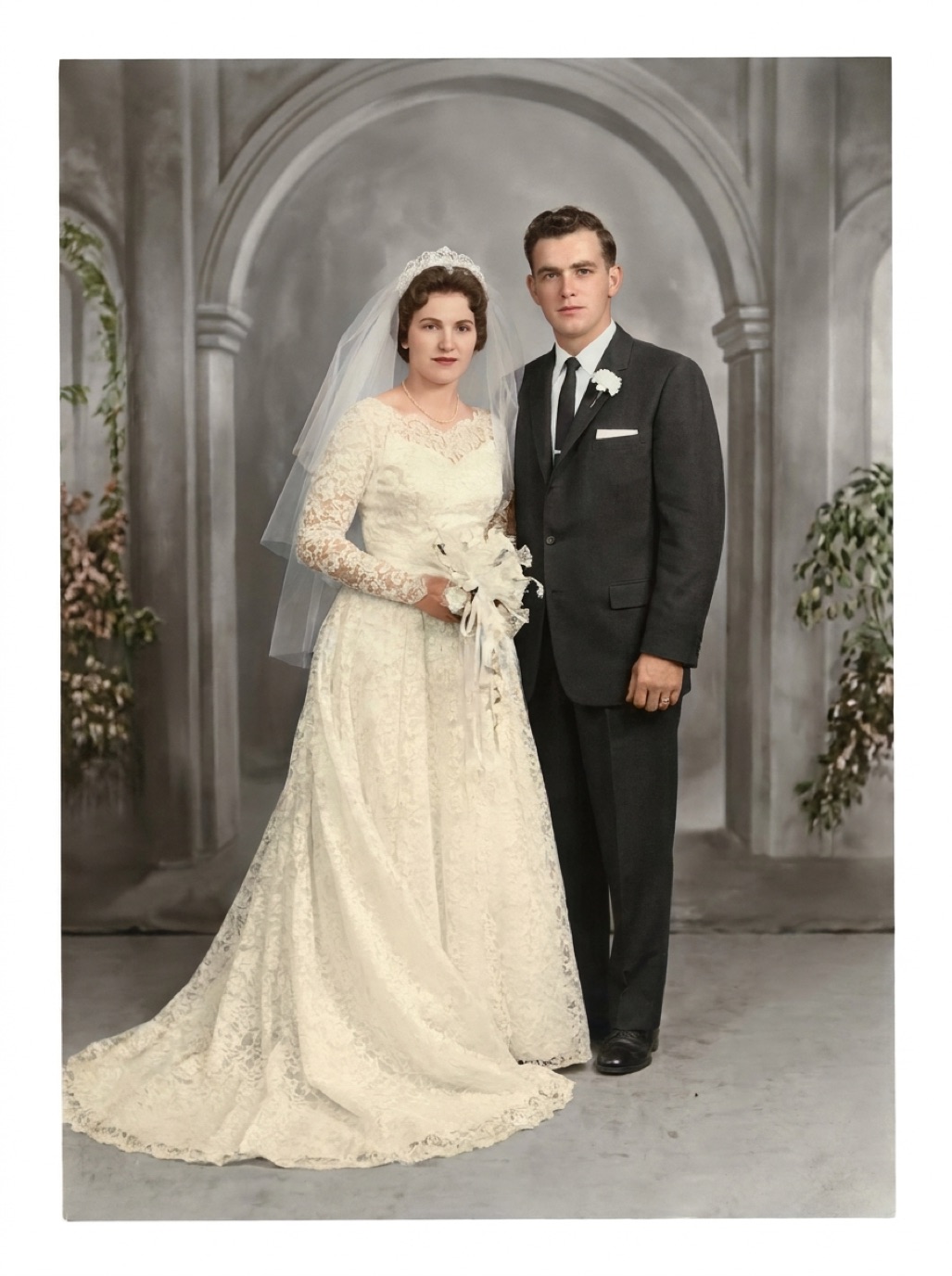
Restored versions: add a suffix, e.g. `_restored` or `_colorized`.
Captions and metadata
File names can't hold everything. Add descriptions:
- In Apple Photos, tap (i) and add a caption; also set the date and location.
- In Google Photos, add a description.
- On a computer, edit the file's metadata (title, description, keywords) with a photo manager.
Write who is in the photo, left to right, plus any story. See labeling old photos and identifying people in old photos.
Albums for sharing
Albums in Photos or a shared cloud folder are great for viewing without changing the master structure: "Grandma Fatima", "Weddings", "The old house". See sharing restored photos with family.
Restored versions
When you restore photos with Refixo, save the result to your library, then move it to your Restored folder with the matching name. Refixo's History also keeps every restore in one place.
Back up the whole structure
Back up the entire "Family Photos" folder, not just your phone's library (see how to back up family photos).
Deal with duplicates
Scanning projects create duplicates: the same photo from two relatives' albums, two captures of the same print, a restored and an unrestored copy in the same folder. Before organizing, keep the best version of each (sharpest, least damaged, highest resolution) and move the rest to a "Duplicates" folder you can delete later. Photo apps can detect duplicates, but check before deleting: two similar prints are sometimes two different moments, and both may matter to someone in the family.
Frequently asked questions
What's the best way to name old photo files?
Start with the date (or circa year), then place and people, then a sequence number.
Should I sort photos by date or by person?
By date in folders, then use albums or keywords for people. One photo can be in many albums but only one folder.
Where should I store captions?
In the file metadata and in captions in your photo app, and in a simple spreadsheet if you like.
How do I handle unknown dates?
Use your best estimate with "c" for circa, e.g. "c1955". See how to date old photos.
Restore it in seconds
Bring your old photos back to life
Refixo's AI removes scratches, tears and stains, sharpens faces and colorizes black & white photos in seconds. Free to download on iPhone and iPad, with a 3-day free trial.
Download on theApp Store